AI Invoice Information Recognition


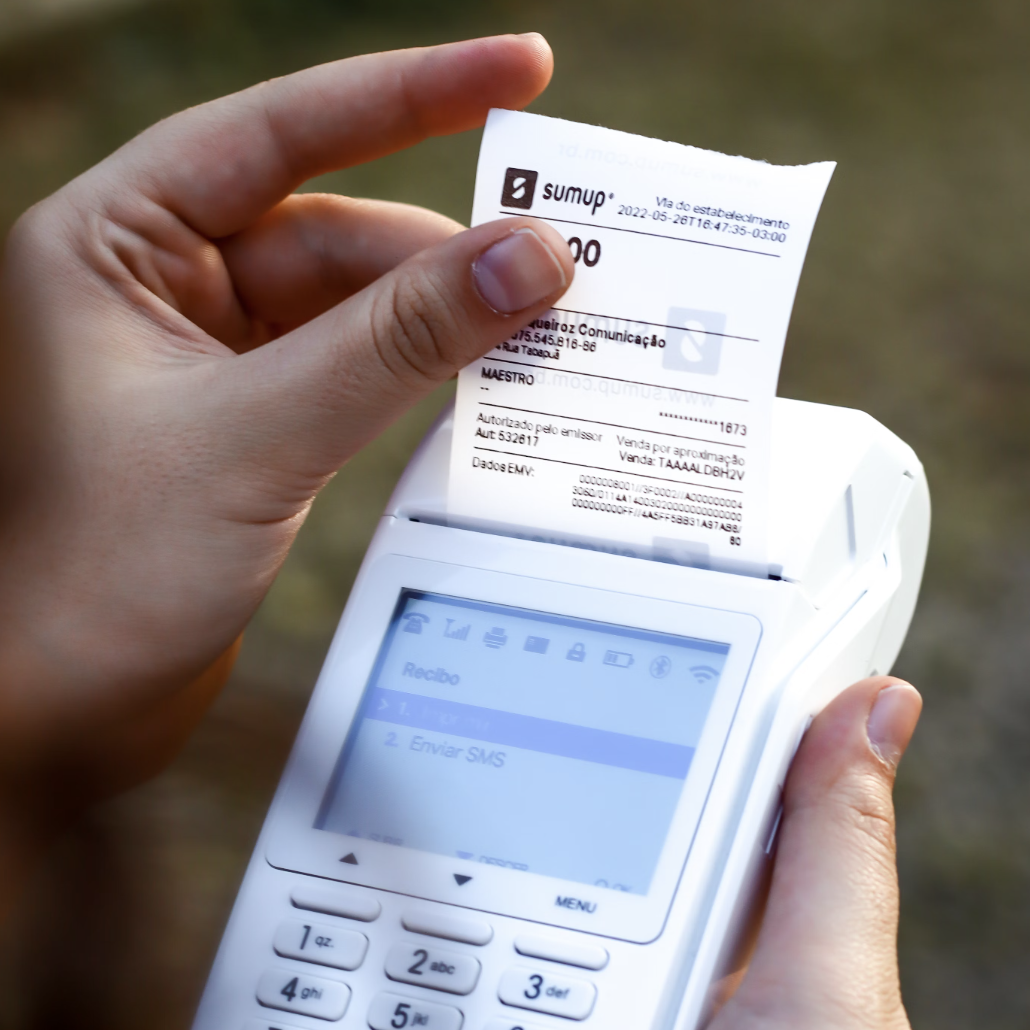
This AI Invoice Information Recognition template uses invoice OCR AI to automatically extract key fields from invoice images and turn manual entry into financial data automation. Set up an end-to-end invoice processing workflow that captures invoice numbers, dates, amounts, and taxes, and stores everything in a structured database. Extend the same flow to receipt data extraction and purchase order processing so finance teams, SMEs, and accountants can handle bulk documents faster, reduce errors, and keep all financial data accurate and searchable.
Overview
AI Invoice Information Recognition
This template uses OpenAI's GPT-4o model to automatically extract key information from invoices, helping businesses or individuals reduce manual entry and improve financial data management efficiency. It optimizes workflows, reduces human errors, and enhances data accuracy.
👉 How the Template Works
- Invoice Upload Form: A quick entry form for uploading invoices.
- Invoice Automatic Recognition And Processing: Uses the AI vision model GPT-4o to scan invoice images and extract key content. You can customize the prompt to capture the information you want.
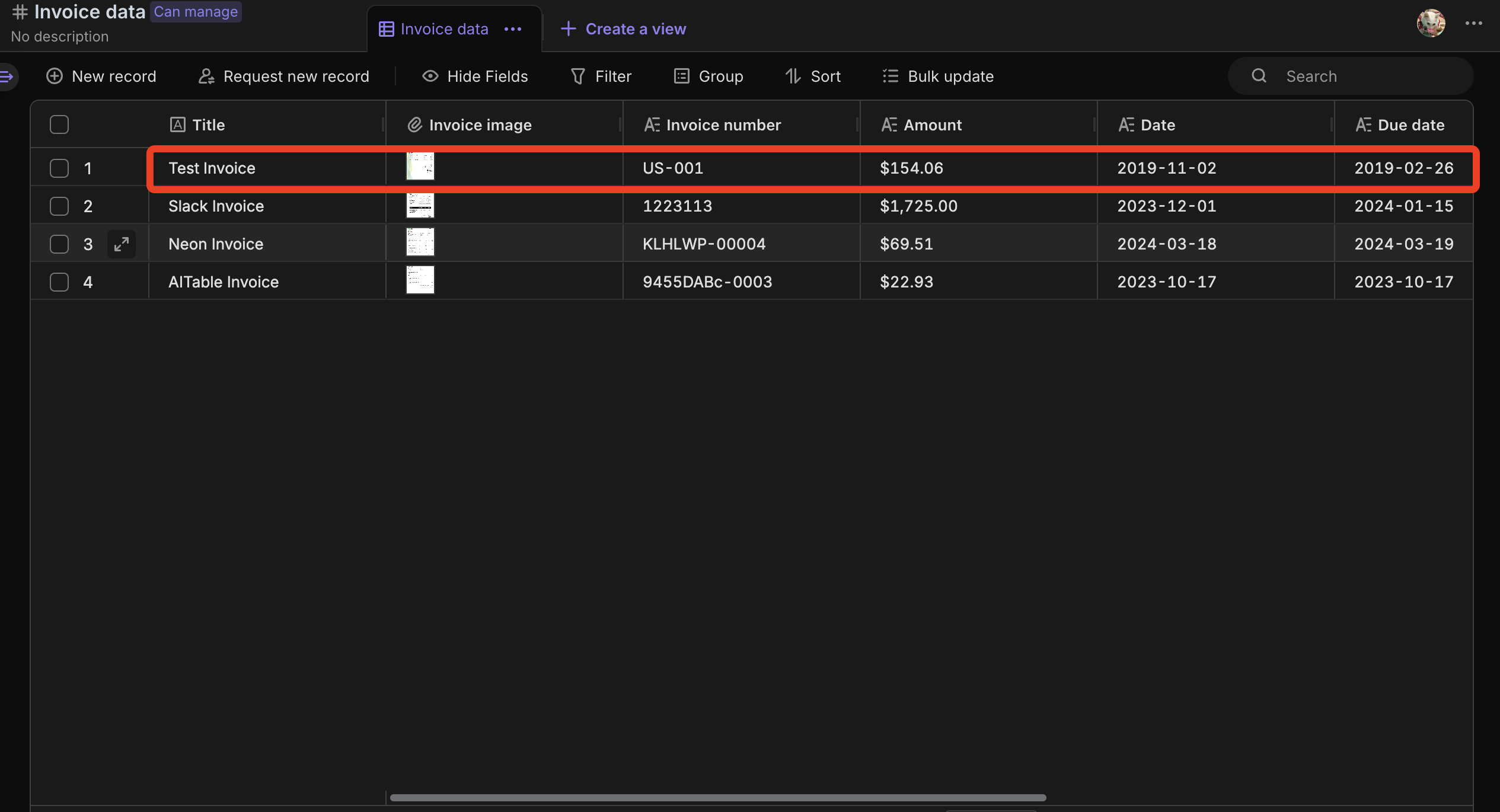
- Invoice Data: Stores invoice images and AI-recognized key information, such as invoice number, date, total amount, etc.
🎯 Steps to Use
-
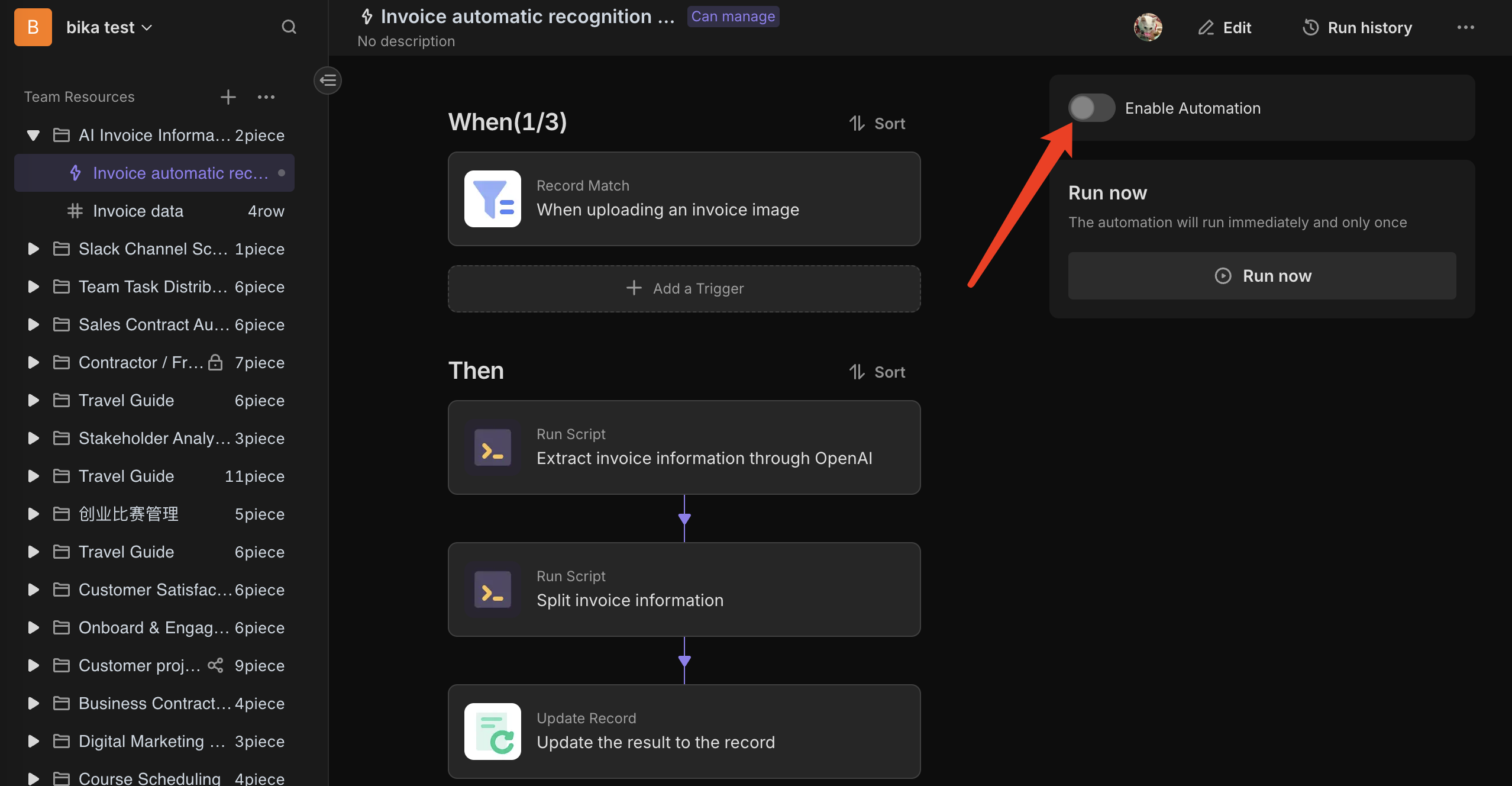
Configure and Enable the AI Invoice Recognition Database:
- Fill in your OpenAI API token. Go to the OpenAI Developer Platform and copy your OPENAI_API_KEY, then paste it into the script configuration of the Invoice Automatic Recognition And Processing automation.
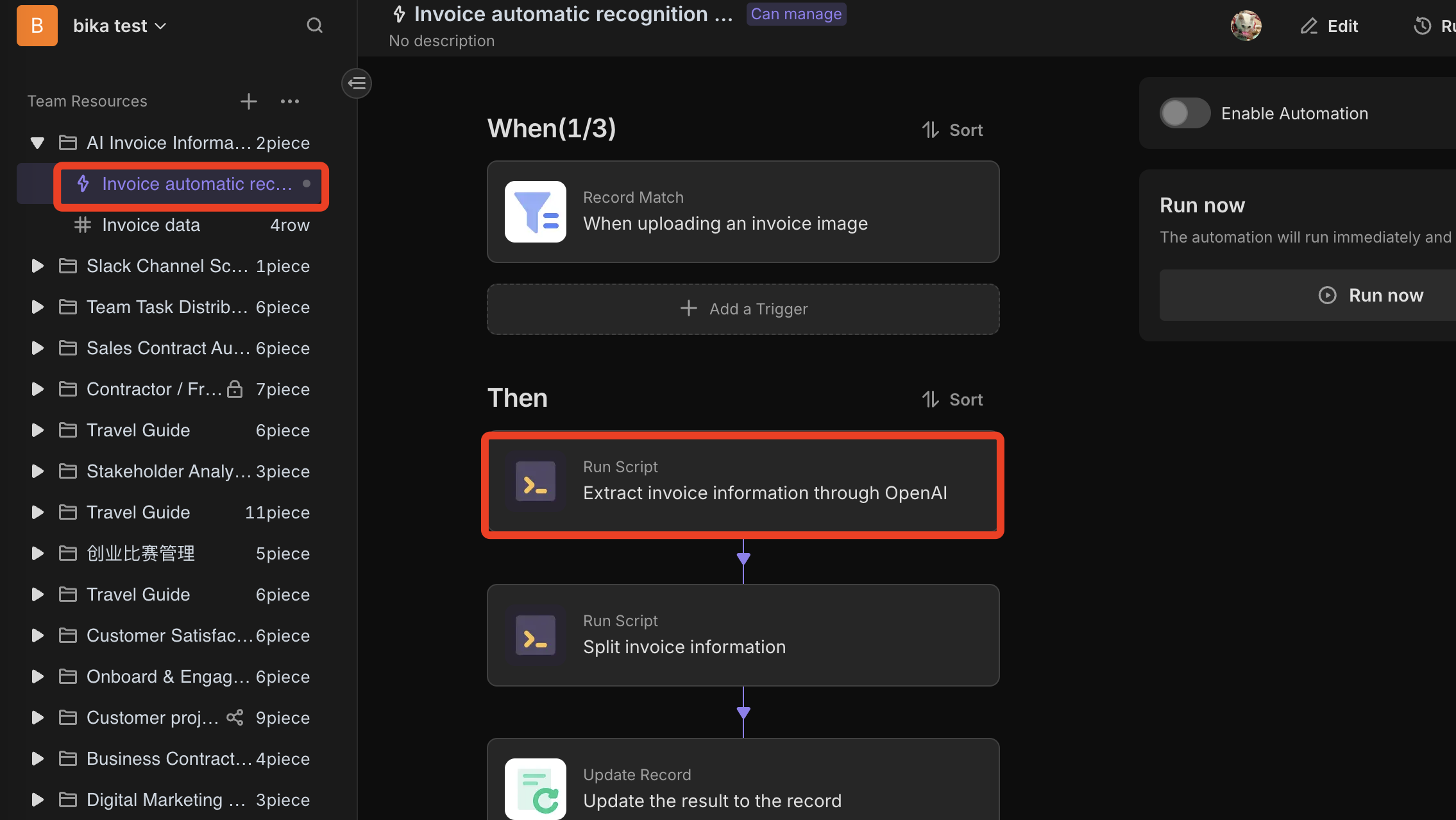
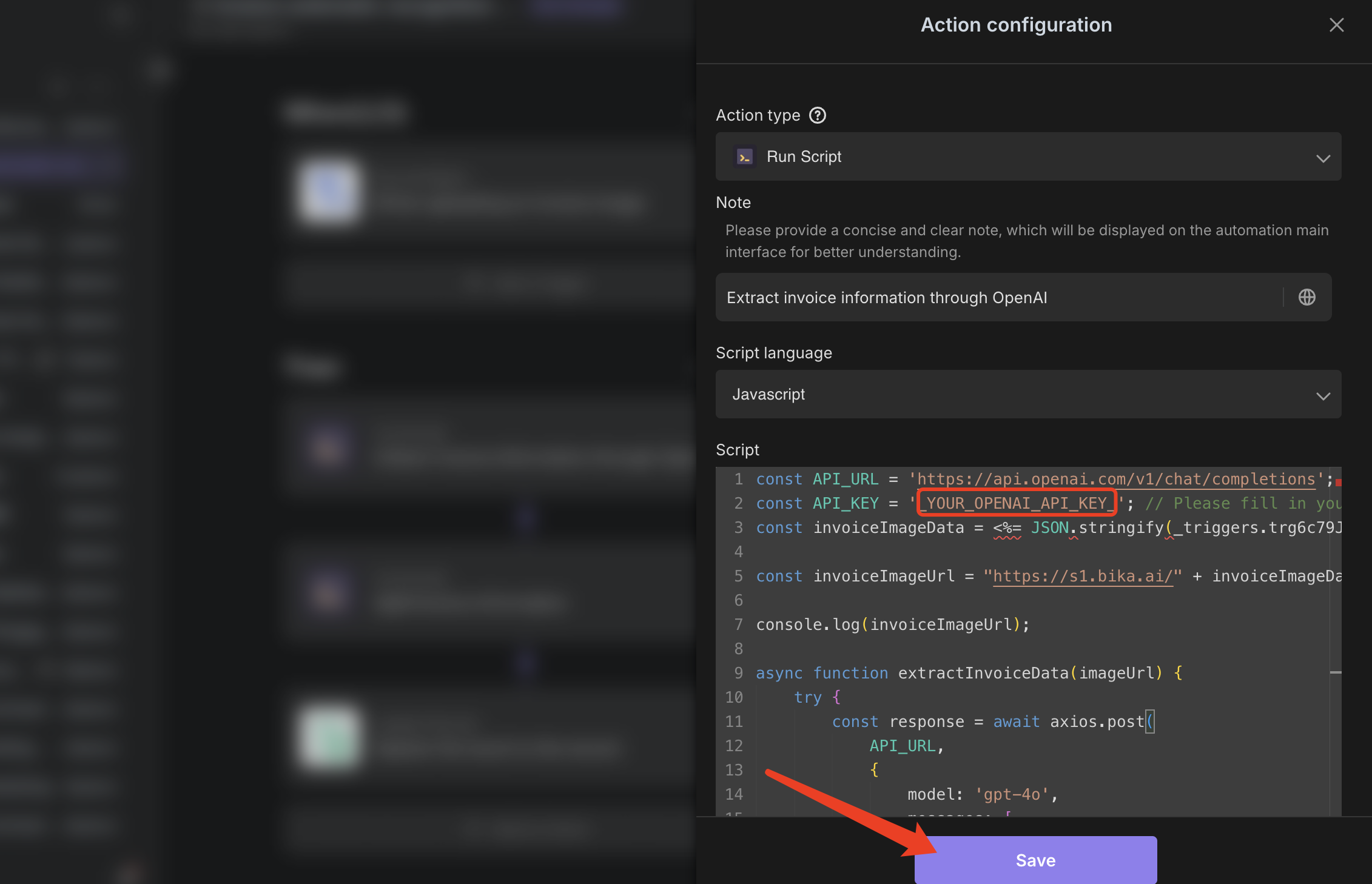
- Enable the AI Invoice Recognition Database automation.
-
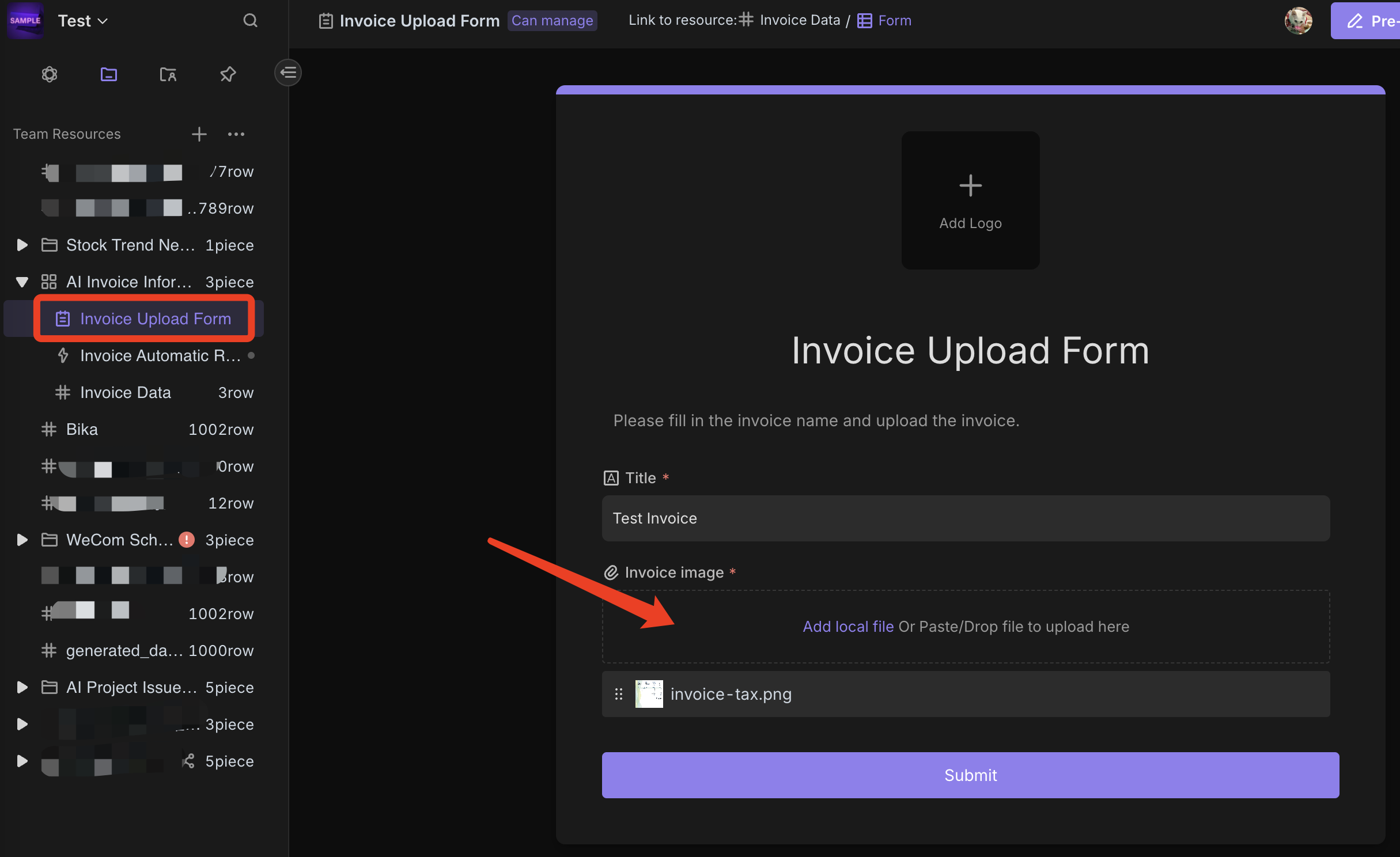
Upload Invoices for Recognition:
Enter the Invoice Upload Form form to upload and submit invoice images. Within seconds, you can view the AI-recognized data in the Invoice Data table.
⭐ Use Cases
- Automated Invoice Processing: Improve financial work efficiency through automated recognition and recording of invoices.
- Batch Invoice Processing: Efficiently handle multiple invoices at once, saving time.
- Financial Data Management: Reduce manual errors and improve financial data accuracy.
- Expense Tracking: Easily extract and organize expense information from invoices.
👥 Suitable Users
- Finance Teams: Automatically extract Invoice Data, reducing manual workload.
- Small and Medium Enterprises (SMEs): Optimize invoice management and financial tracking.
- Accounting Professionals: Enhance efficiency in managing bulk invoices.
- Procurement Departments: Simplify the processing of purchase orders and supplier invoices.
🔧 FAQ
-
What types of invoices can be recognized?
This template supports the recognition of most electronic transaction receipts, including common electronic invoices, receipts, and purchase orders. The AI will automatically extract key information such as invoice number, amount, date, due date, product service, billed to, helping you efficiently organize financial data. If you want to see examples, please go to the Invoice Data table and refer to the uploaded invoice samples.
-
What image formats are supported? Can PDFs be recognized?
Currently, this template supports the following image formats: PNG (.png), JPEG (.jpeg / .jpg), WEBP (.webp), but does not support direct recognition of PDF (.pdf) files. Note: To ensure recognition effectiveness, it is recommended to upload clear, non-overly compressed images, and ensure the file size does not exceed 20MB.
-
How to modify or add the information to be recognized?
- If you have development experience, that's great! You can enter the Invoice Automatic Recognition And Processing automation and directly modify the script code to suit your needs.
- If you don't have a coding background, don't worry! Here is a detailed modification example that you can follow to make adjustments. Hope it helps you.
🔖 Modification Example: Adding "Sales Tax" Field Recognition
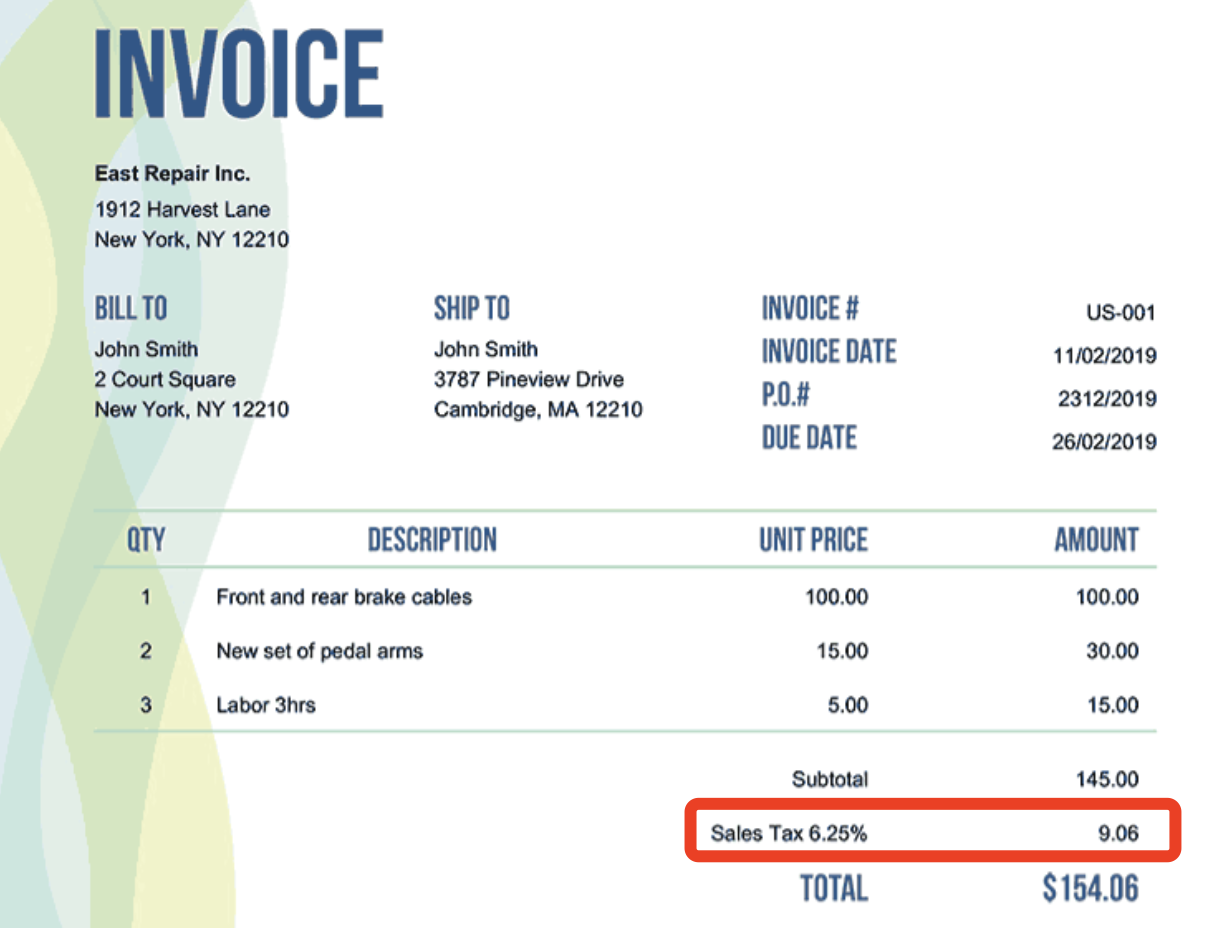
Suppose we need the AI to recognize the Sales Tax in the invoice and record it in the data table. We can follow these steps:
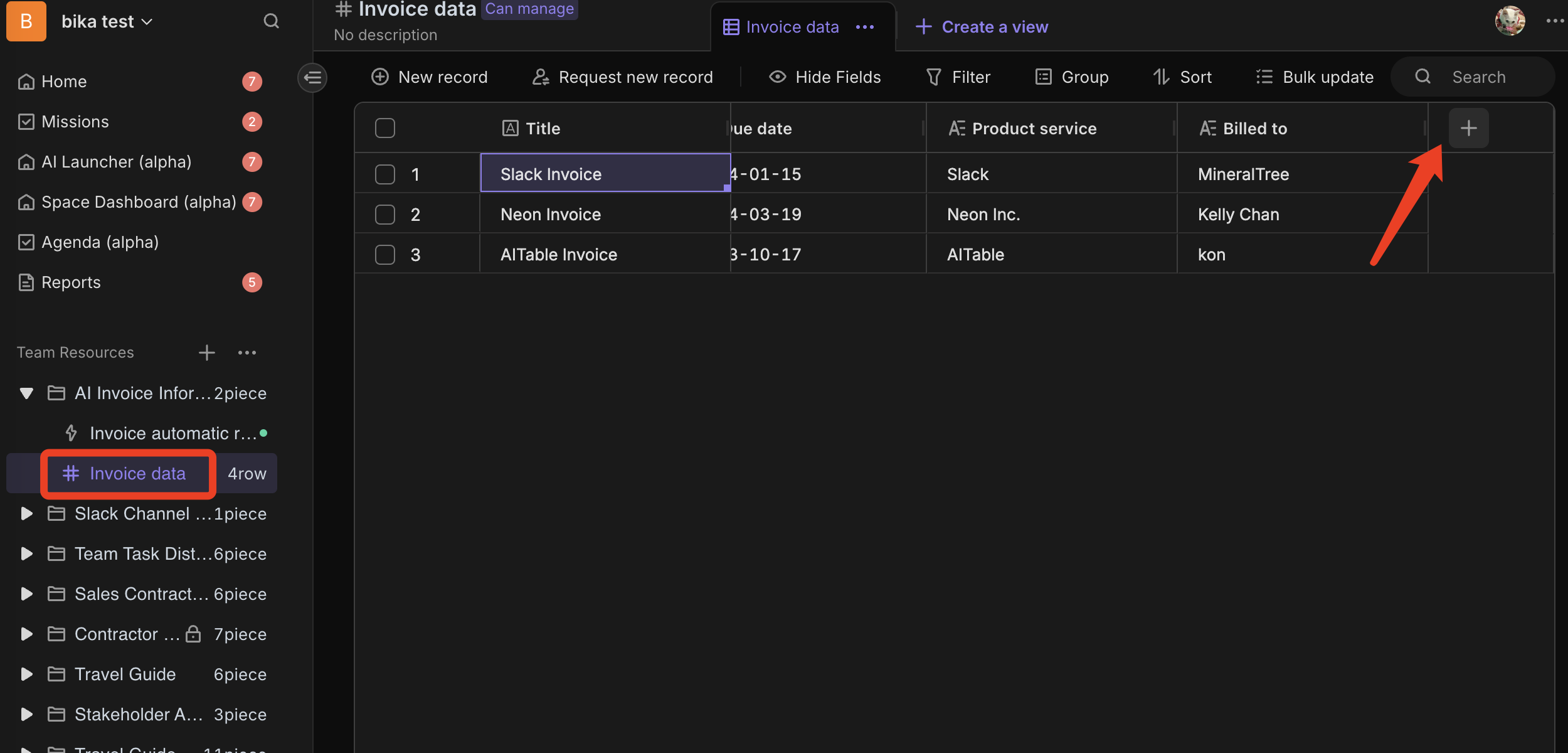
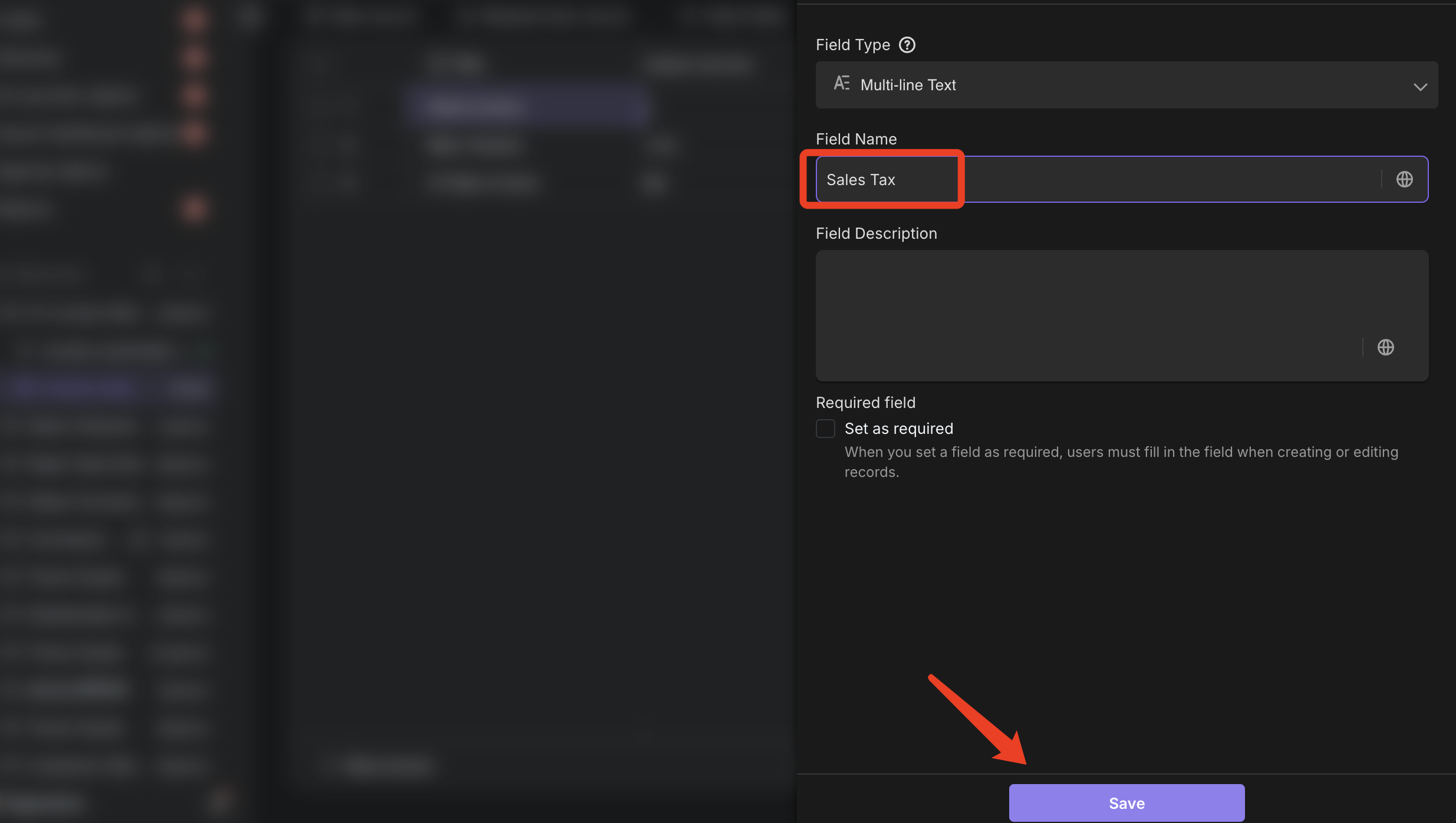
1. Add "Sales Tax" Field in the Database
First, go to the Invoice Data table and add a new field "Sales Tax" to store the AI-recognized sales tax amount.
2. Modify AI Recognition Logic
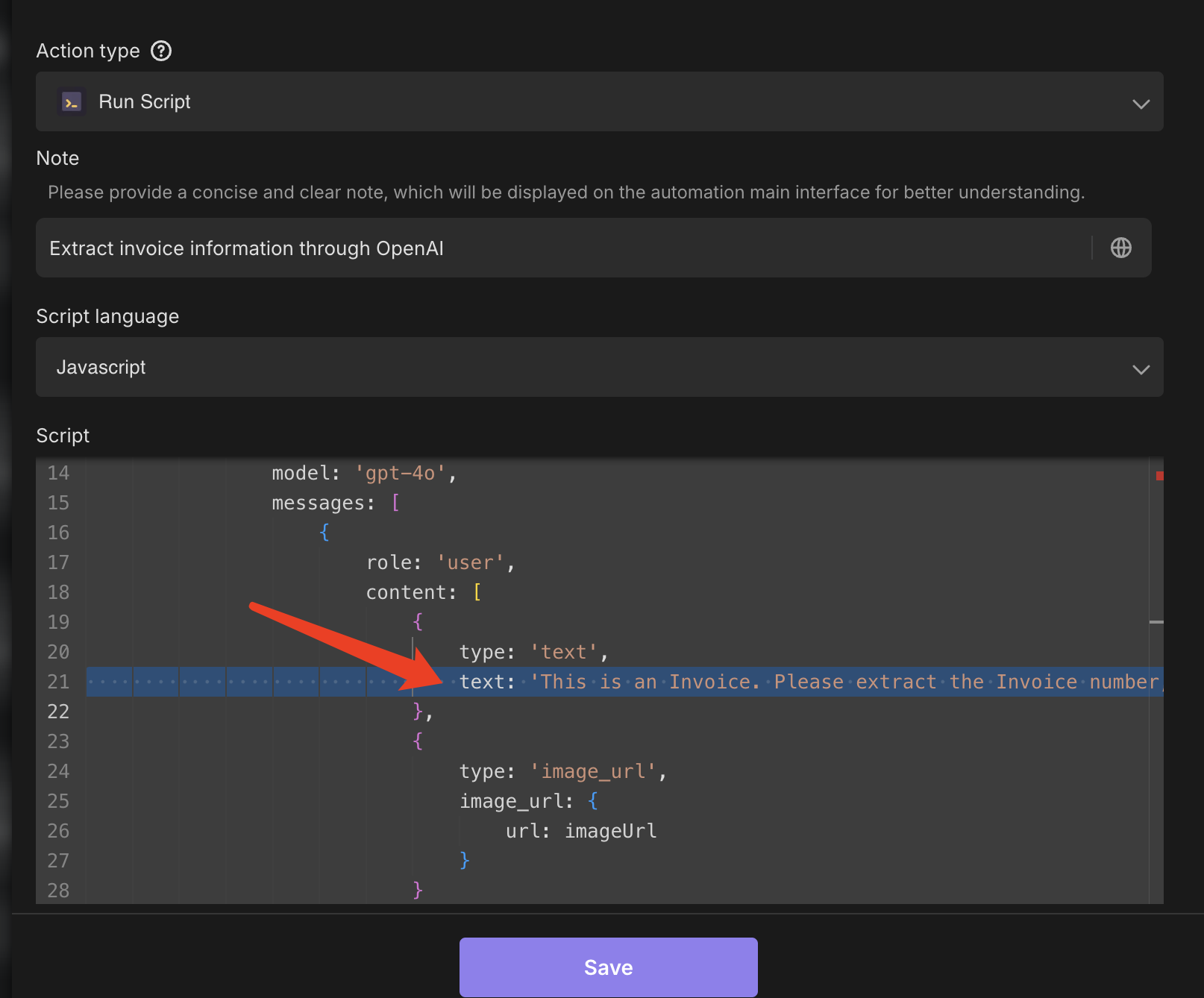
- Enter the Invoice Automatic Recognition And Processing automation and find the "Extract invoice information through OpenAI" script.
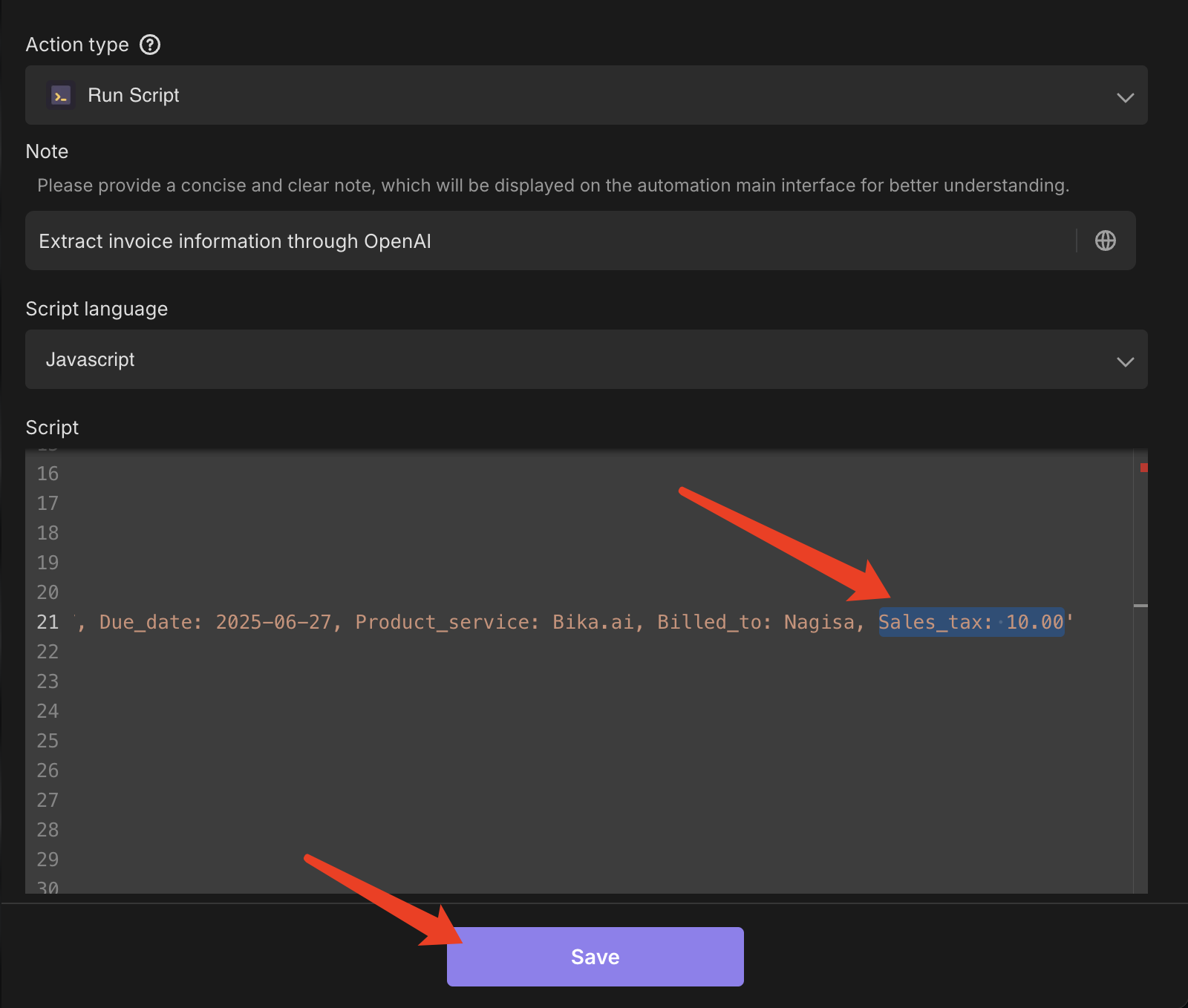
- Scroll to line 21 and modify the AI prompt to include Sales Tax related data when extracting invoice information. As shown in the figure, we add
Sales_tax: 10.00to the preset prompt.
3. Trigger Automation and Check Recognition Results
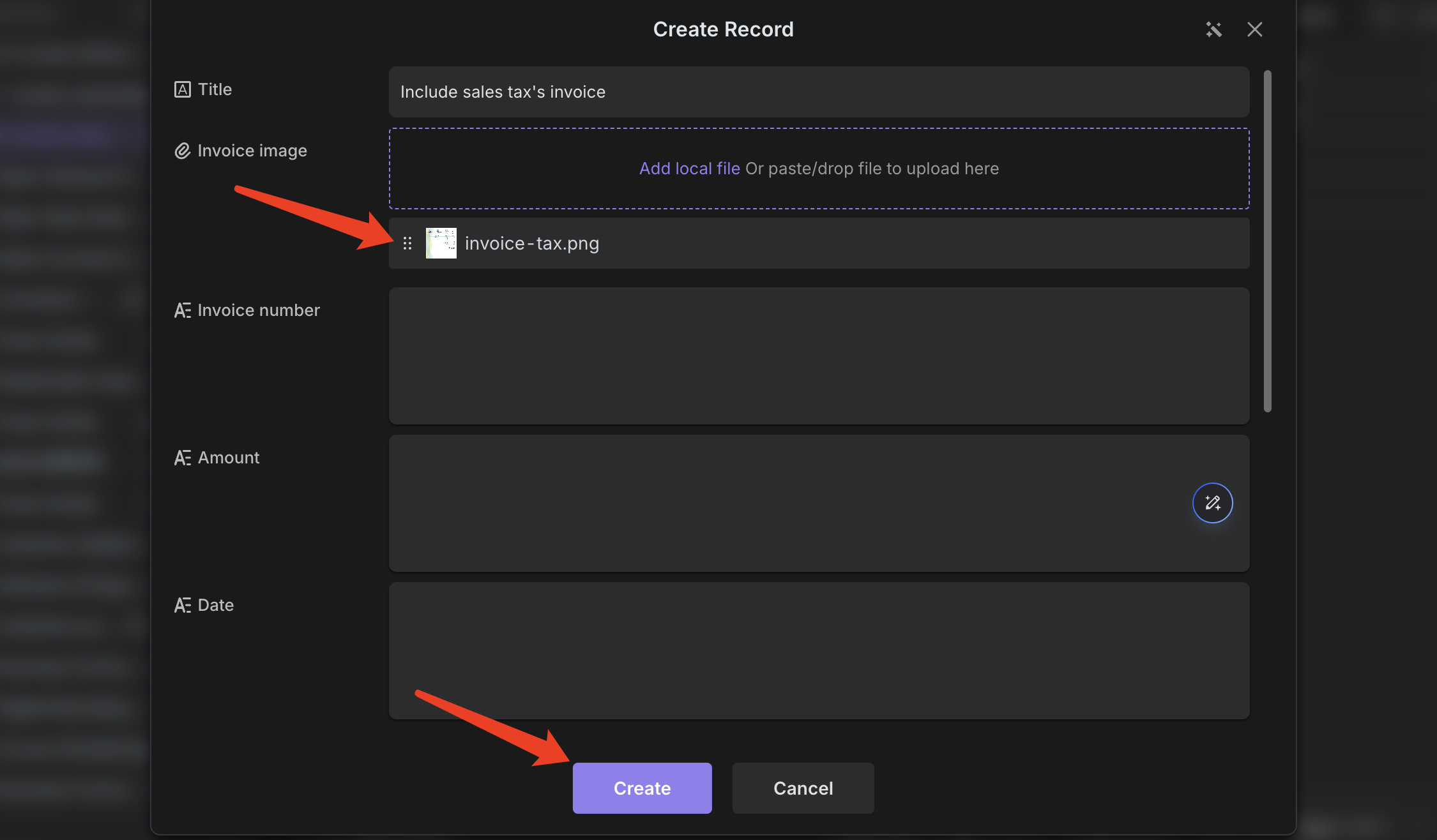
- Create a new record in the Invoice Data table and upload an invoice image to trigger automatic recognition.
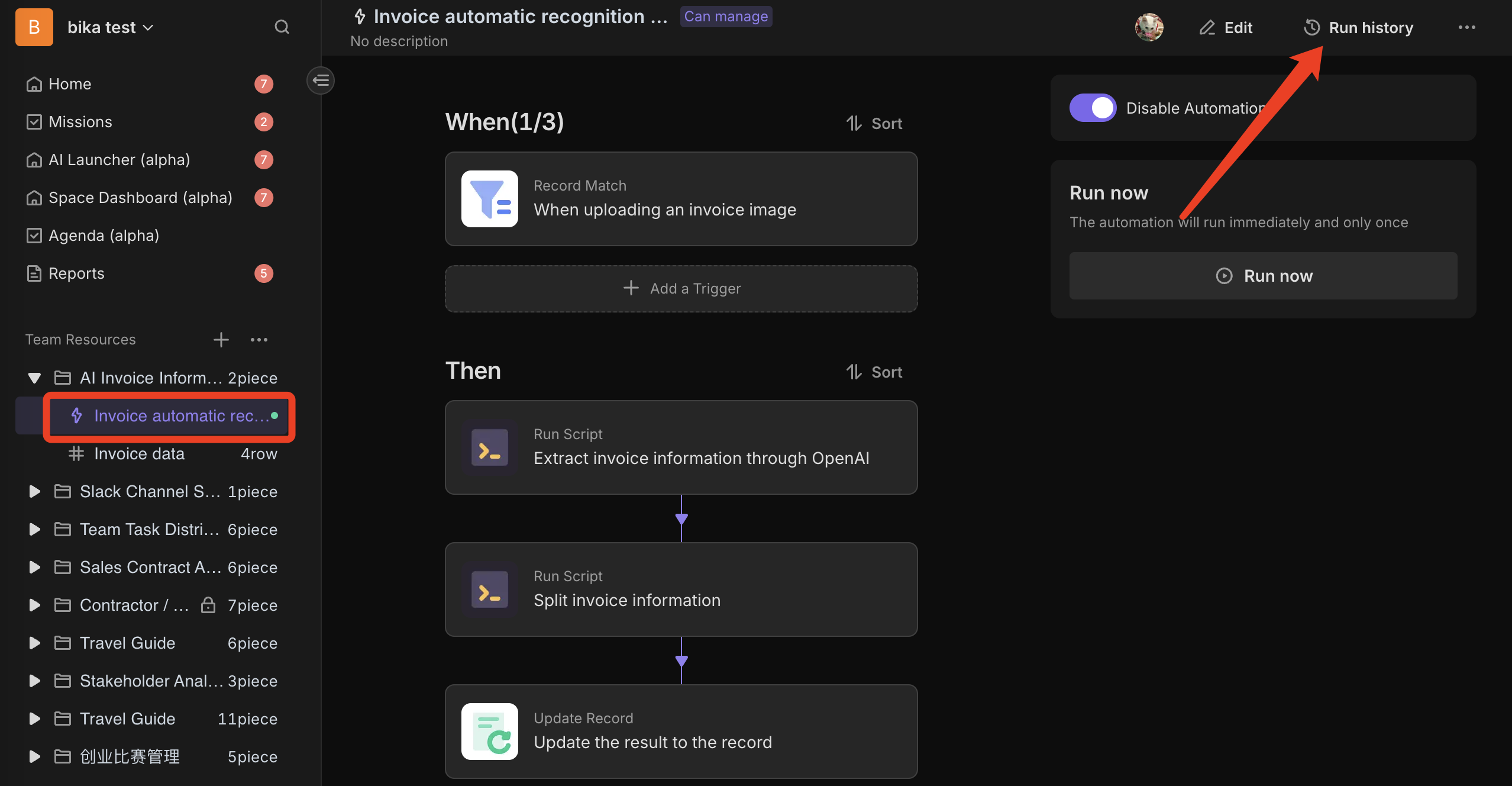
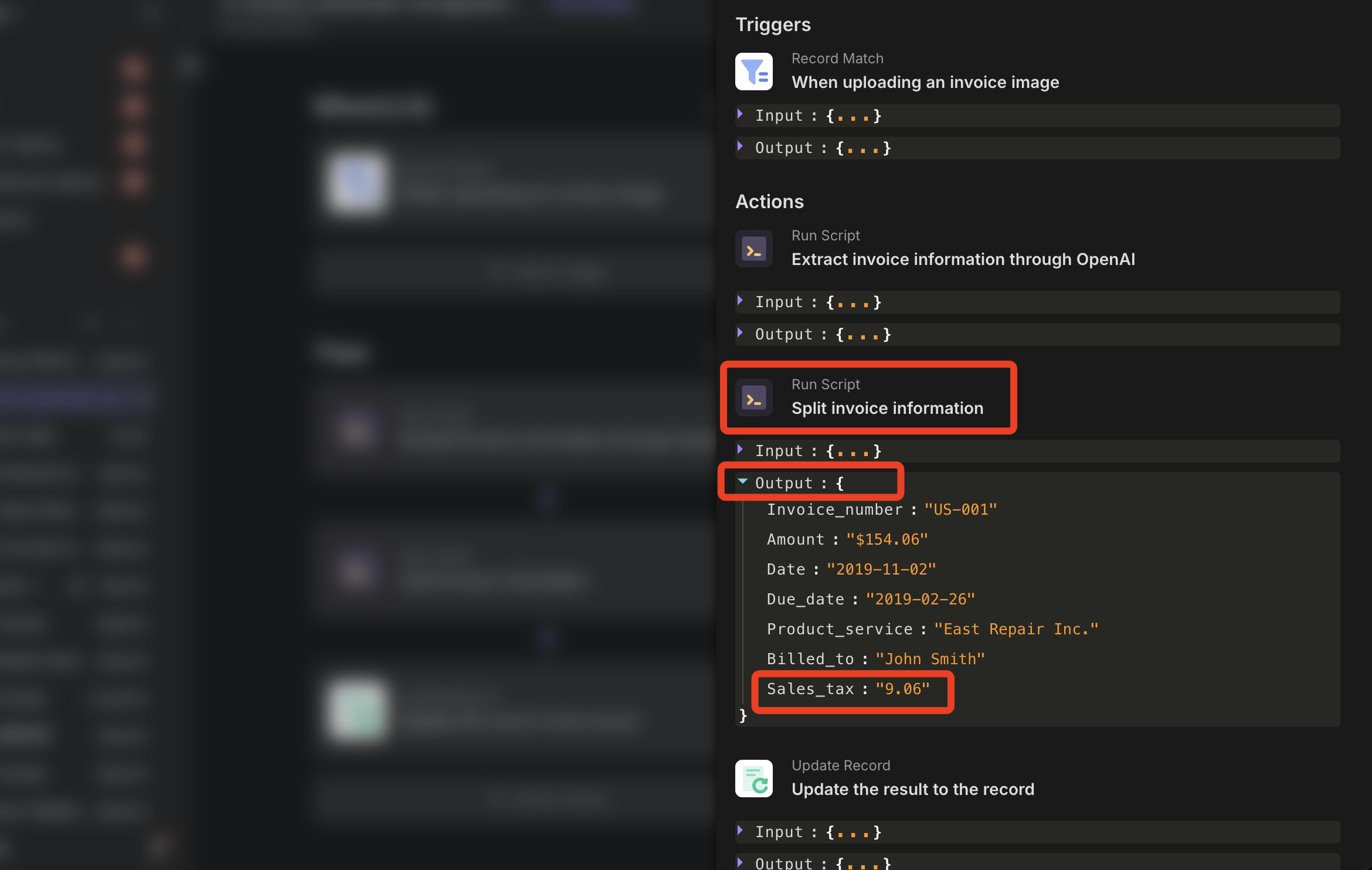
- Go to the Run History of the Invoice Automatic Recognition And Processing automation, check the latest history record, and expand the output information of the Split invoice information script to confirm whether the Sales Tax was successfully recognized.
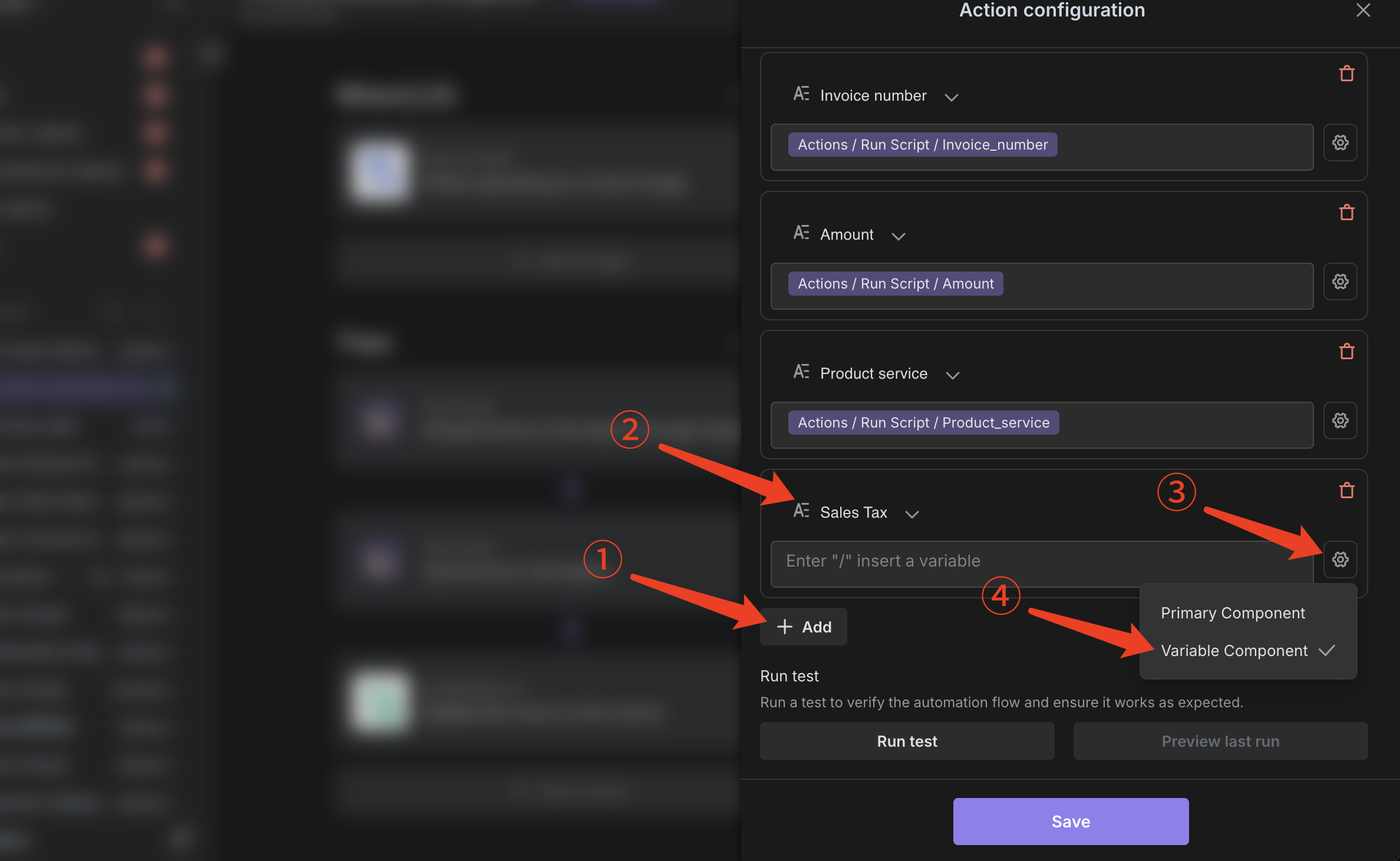
4. Configure "Sales Tax" Field Auto-Fill
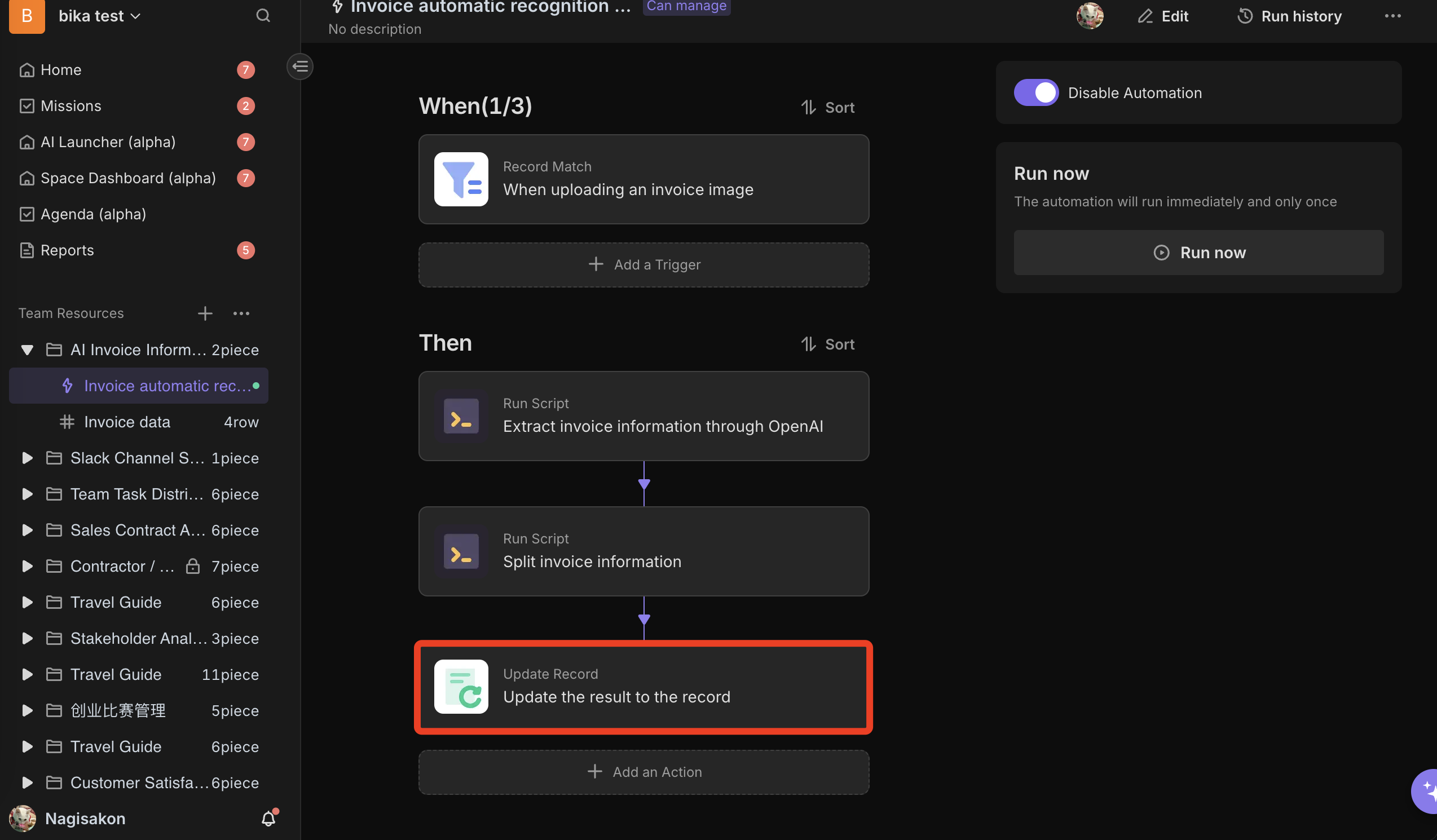
- Return to the Invoice Automatic Recognition And Processing automation page and enter the Update the result to the record configuration page.
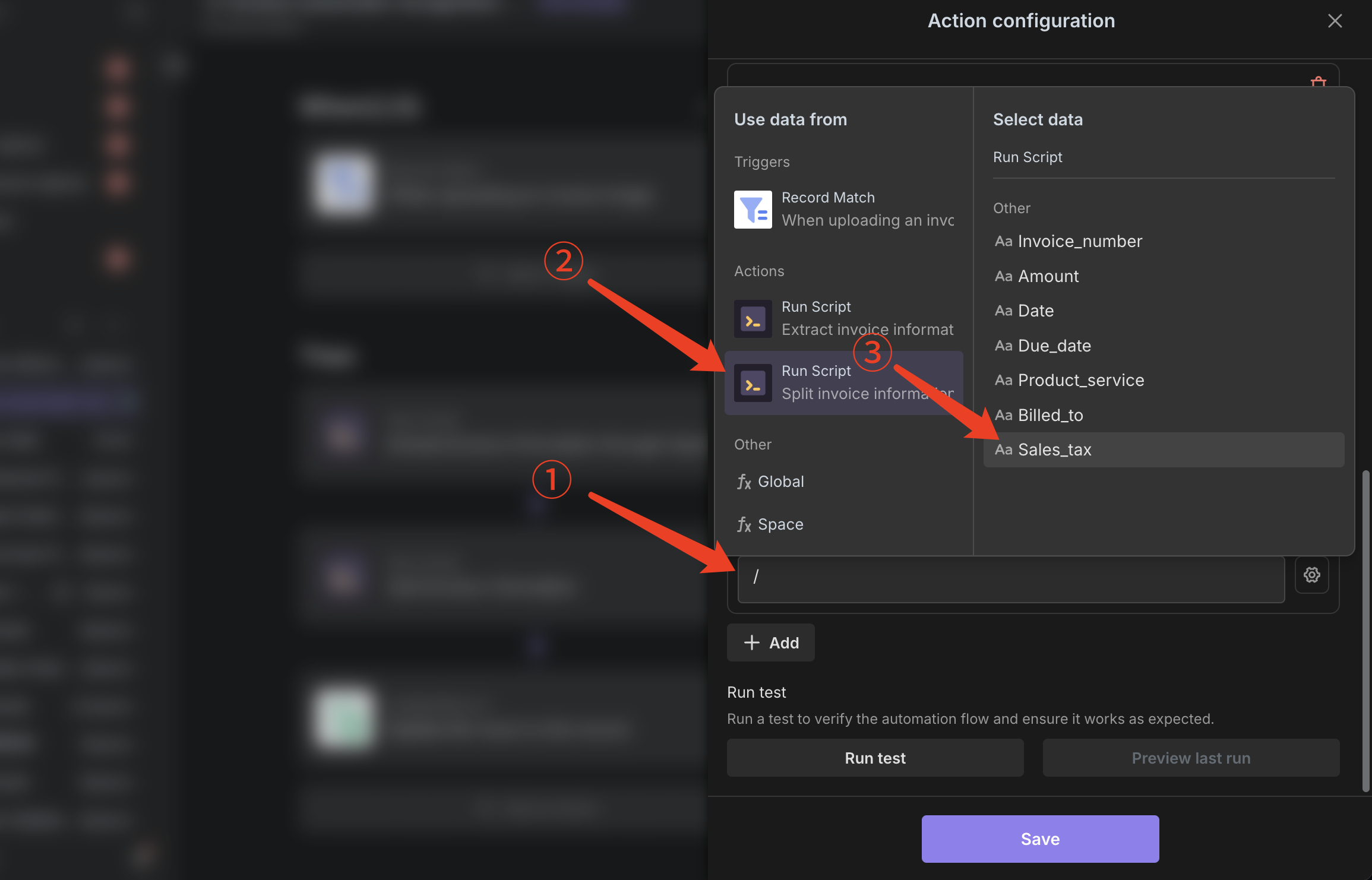
- Click to add the "Sales Tax" field and fill in the
Sales_Taxvariable tag from the Split invoice information script, then save the configuration.
5. Verify Final Recognition Effect
Upload an invoice image containing sales tax, wait for the automation to complete, and check the Invoice Data table to confirm whether the Sales Tax information is correctly recognized and filled.
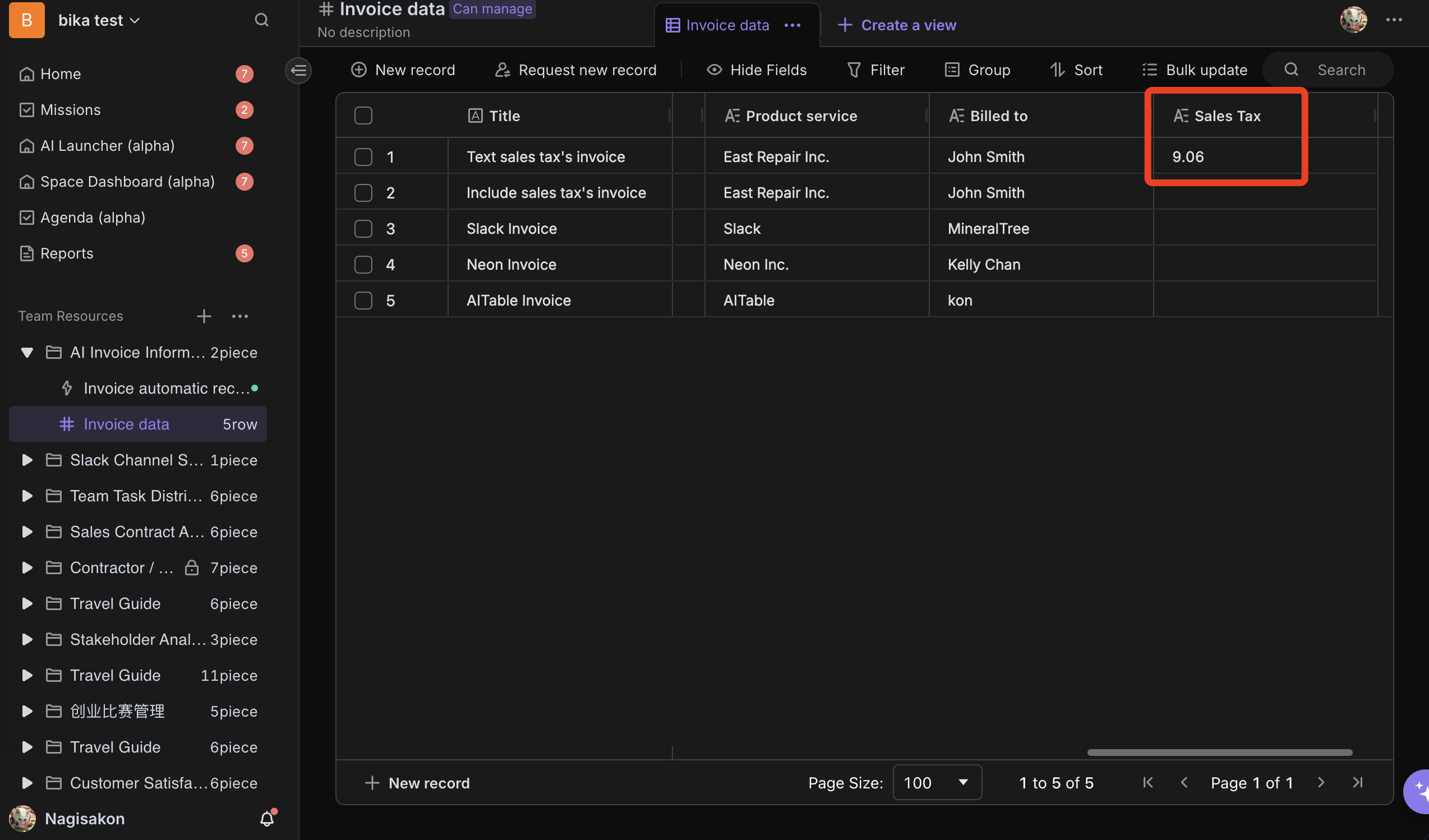
🎉 Congratulations! Now your AI Invoice Recognition Template supports the extraction of the "Sales Tax" field!

Recommend Reading
Recommend AI Automation Templates




Coming soon