


Expense Tracking
Expense Tracking
v1.0.14
pengjin
Easily manage your personal and team expenses with Bika.ai’s expense tracking template. Track receipts, monitor shared expenses, gain actionable spending insights, and visualize financial data with an intuitive expense dashboard designed to simplify budgeting and control finances efficiently.
📋 Project Management
Included Resources
Record Receipt Form
Receipt Log
Weekly expenditure reminder
Workflow Graph
Workflow Graph
Workflow of Expense Tracking
Release notes
Release notes
Release notes of Expense Tracking
💡 Expense Tracking
This template helps you easily track every expense, whether it's personal shopping, household purchases, Keep your spending clear and organized, making life and work more efficient and harmonious.
👉 How the template Works?
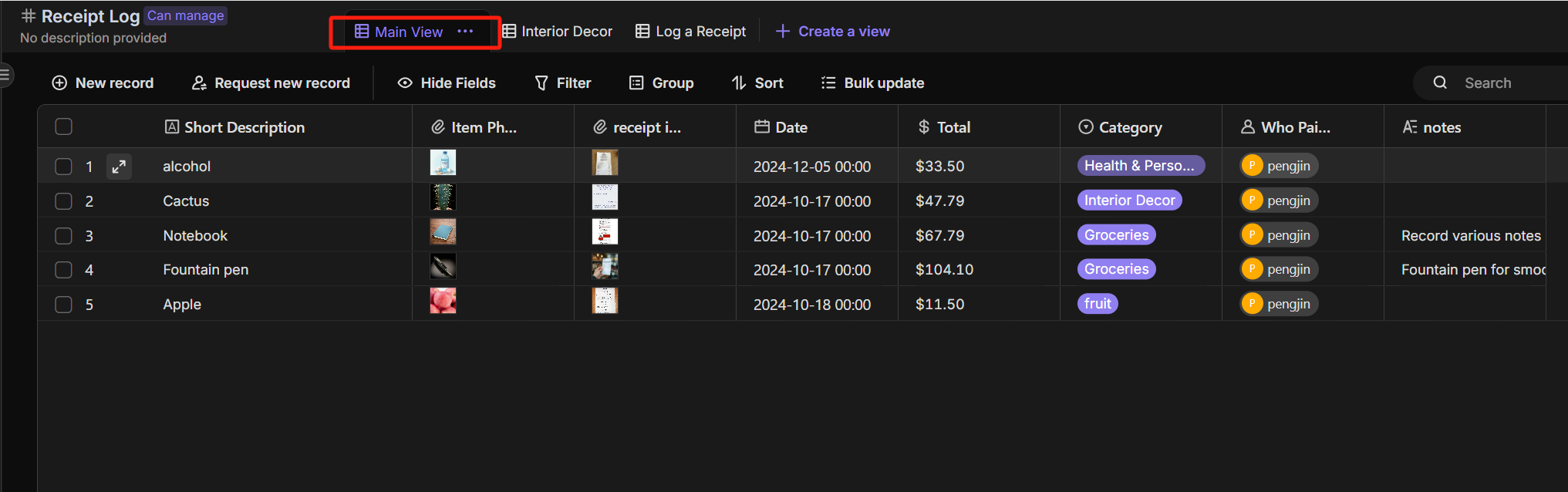
- Users view and manage all receipt records in the Main View, where each record includes essential information such as item name, receipt photo, date.
- For more detailed entries, users select the Log a Receipt Form to fill out complete receipt details.
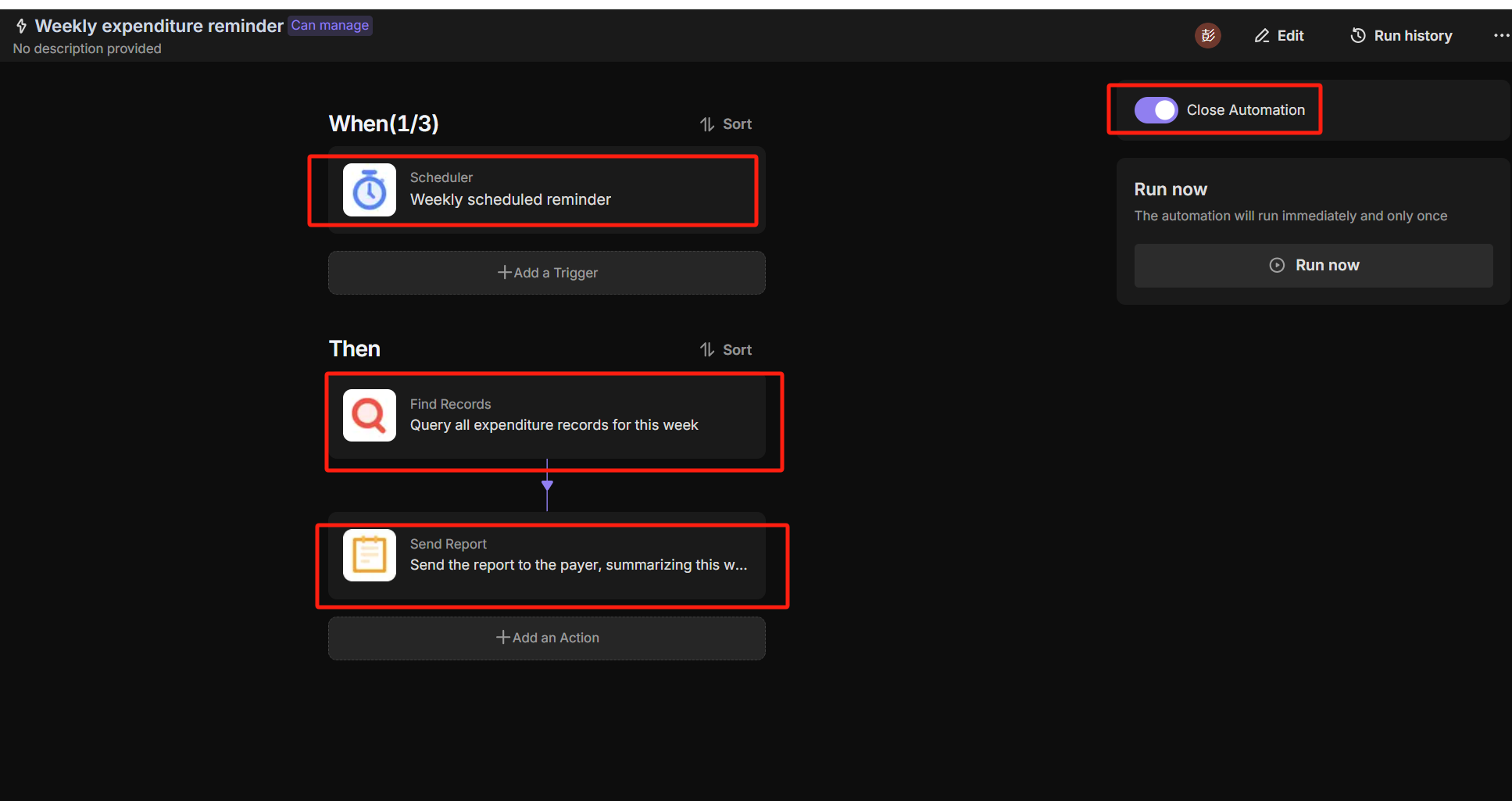
- Based on the predefined automation workflow,The expenditure records will be automatically sent to the user every week.
🎯 Steps to Use
-
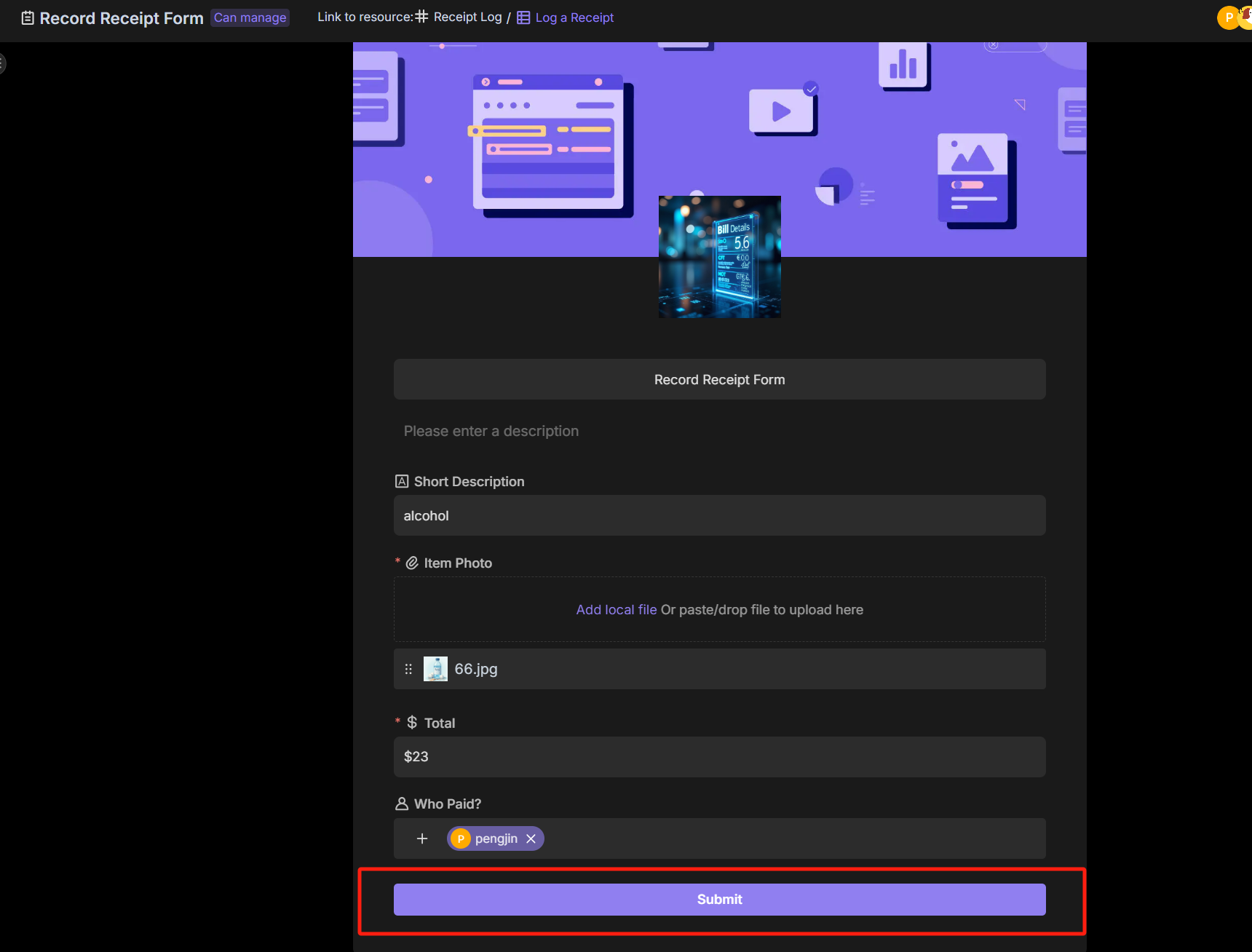
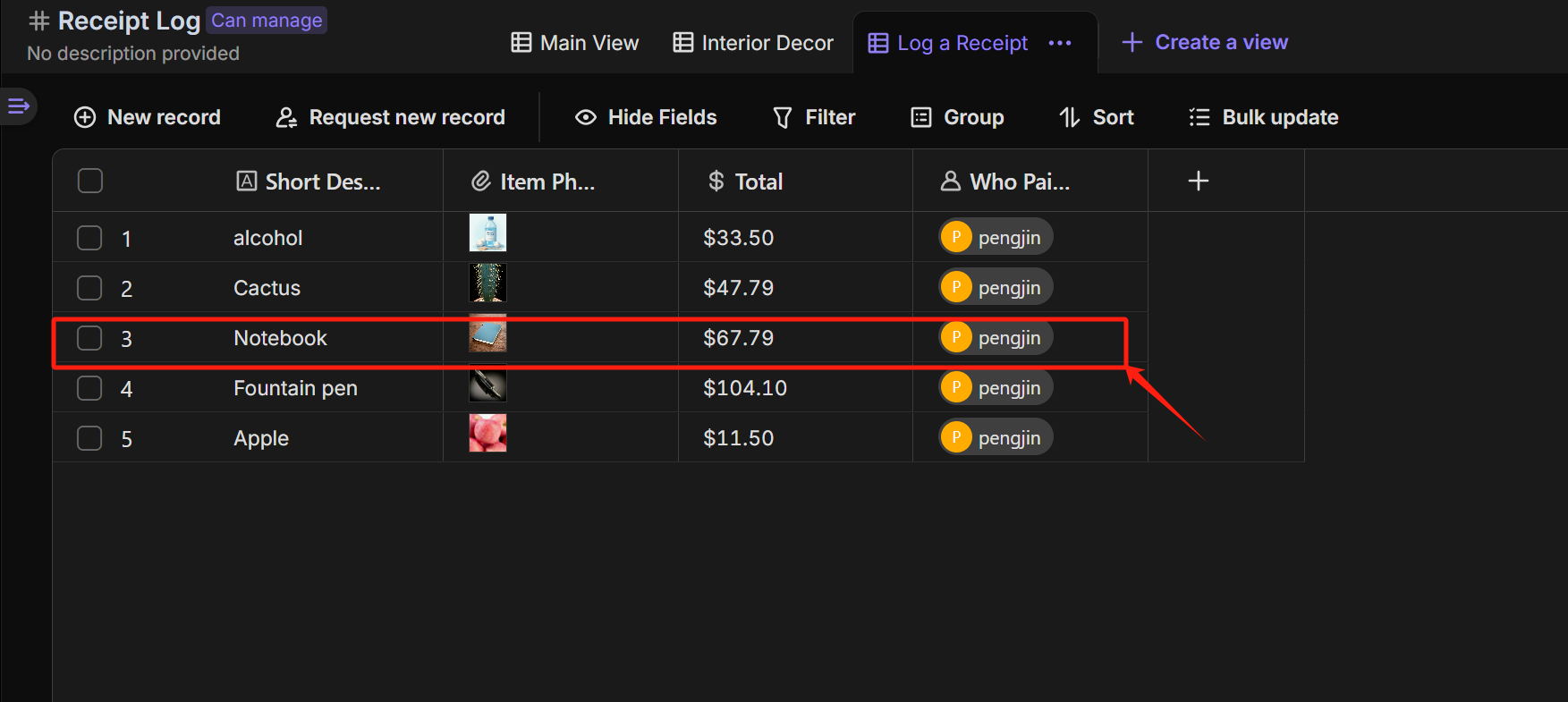
Alternatively, you can use the Log a Receipt Form to provide detailed expense record information (including: Item Photo,Total, Category, and Who Paid). After submission, the record will appear in the Log a Receipt view of the Receipt Log table.
-
In the Main View of the Receipt Log table, you can view all expense record information.
-
Set up the Weekly Expenditure Reminder automation to automatically send expense report reminders to consumers each week.
👉 Who should use this template
- Personal users, Financial managers, Business leaders, Team members
⭐ Key Features of This Template
- Quickly submit each expense record through a form
- Create multiple views to provide transparent expense tracking
- Automatically send weekly expense reports via automation
FAQ
1. How do I add my own expense categories (e.g., "Travel" or "Groceries")?
The Category field is a "Single Select" field.
- Click the header of the Category column in the Main View.
- Select "Edit field".
- Add or remove options to match your specific spending habits.
2. Can I upload receipt photos from my phone?
Yes. The Log a Receipt Form is mobile-friendly.
- Open the Log a Receipt form view.
- Click "Share" and send the link to your phone.
- When you open the link on mobile, you can snap a photo of the receipt and submit it instantly.
3. How do I see the total sum of my expenses?
You don't need a calculator. In the Main View:
- Hover over the bottom of the Total column.
- Select "Sum" in the calculation bar to see the grand total.
- You can also use the "Group" button to group records by Category or Who Paid to see subtotals for each section.
4. How do I change when the weekly report is sent?
- Go to the Automation tab.
- Select the "Weekly Expenditure Reminder" workflow.
- Click the "Scheduled Trigger" node.
- Change the day and time (e.g., from Friday to Monday morning) to better fit your schedule.